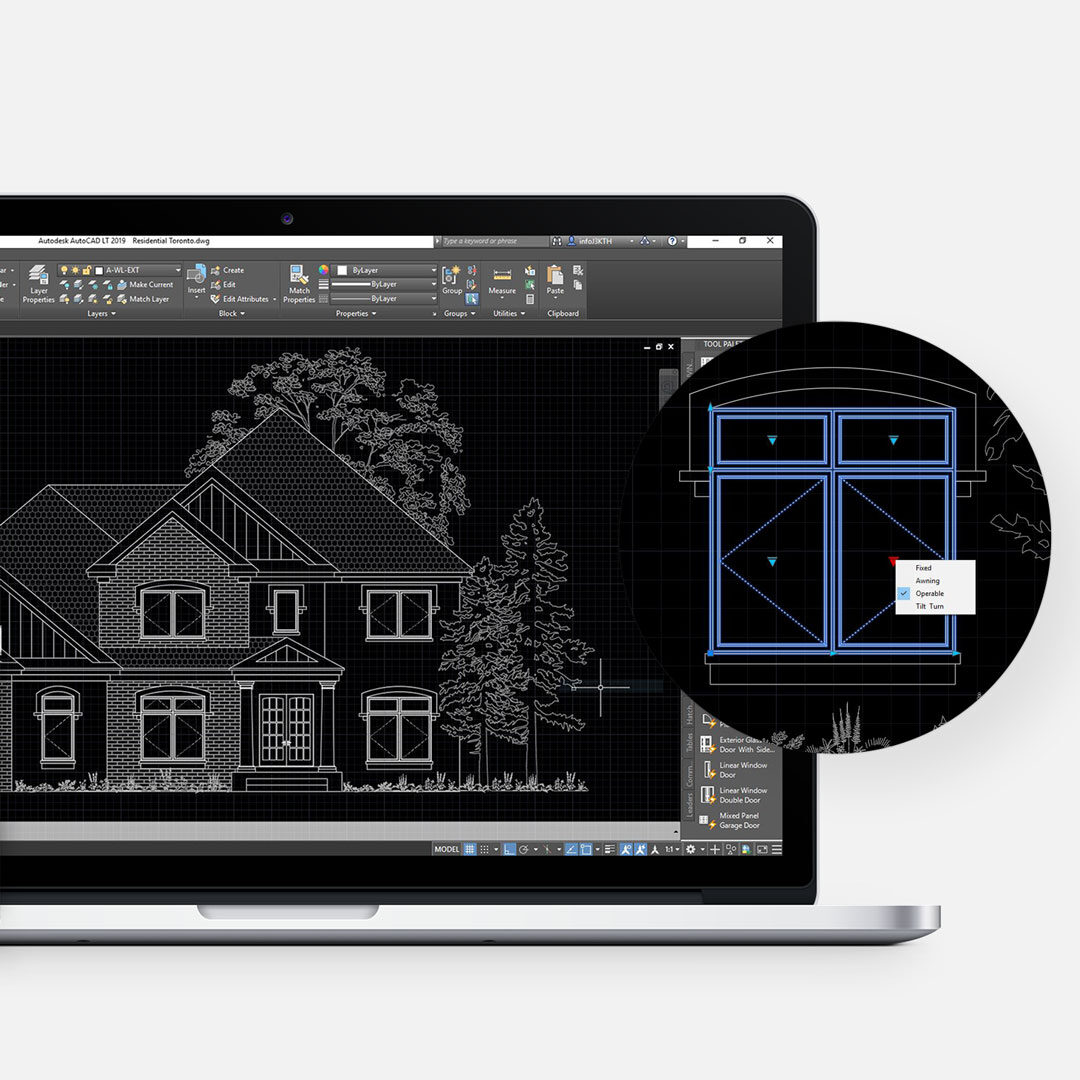
There are many ways to work faster inside AutoCAD. Custom toolbars, personalized ribbons, templates, and shortcuts can all help. But one of the easiest ways to speed up your workflow is learning the right AutoCAD commands. Everyone has their own way of working. Some people prefer clicking icons, while others type everything. Neither approach is wrong. It usually comes down to comfort and habit. That said, command typing is often faster. It also has one major advantage: menus and ribbon layouts may change between versions, but commands stay consistent. If you want to become more efficient, these are 10 AutoCAD commands worth knowing.
Built-In One-Key Shortcuts
AutoCAD already includes several default one-key shortcuts that can speed things up even further. If you’re not using them yet, they’re worth exploring alongside the commands below.
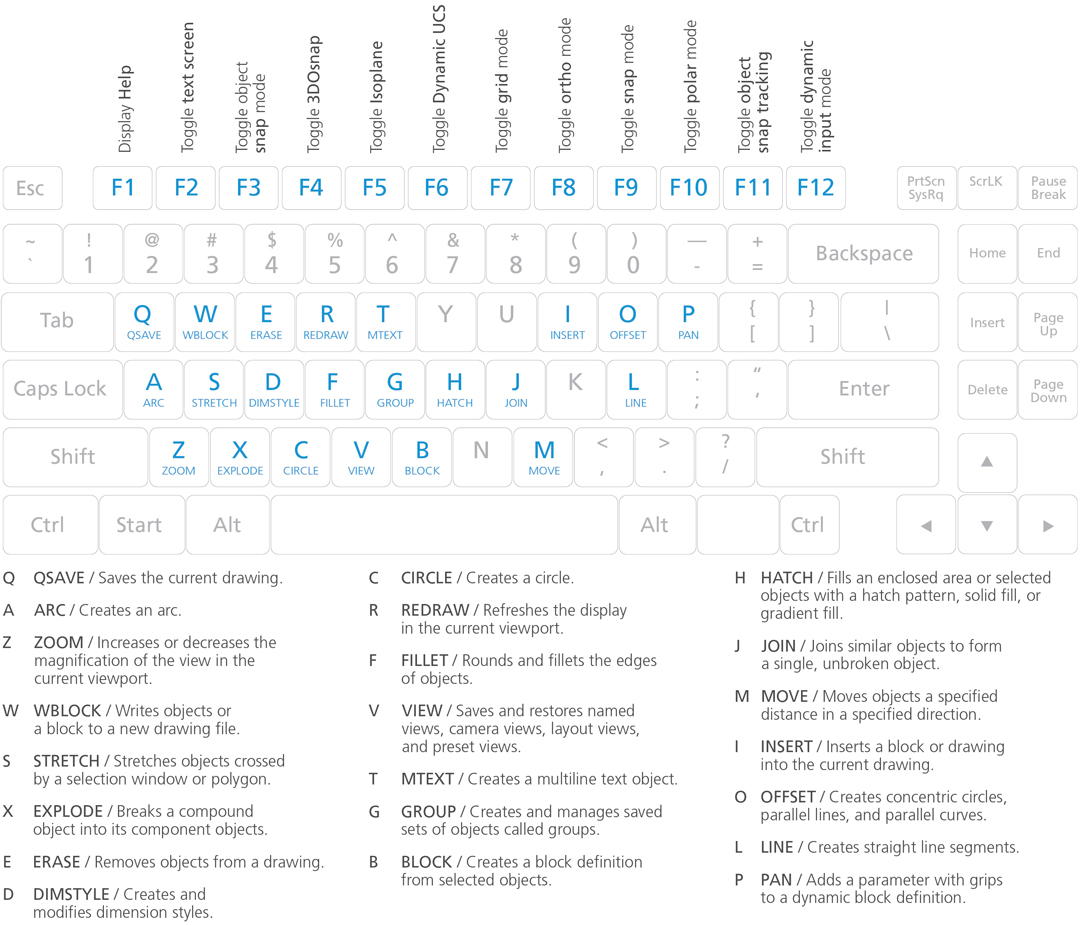
Here are our top 10 commands we like to use to increase productivity.
FILLET, Faster Trim and Extend. Instead of using both commands, you can speed up your drawing by using command FILLET. Use the command, and press R for radius. A value of 0 will give you a straight angle, any other value will join the lines in an arc. Select first line, then your second line.
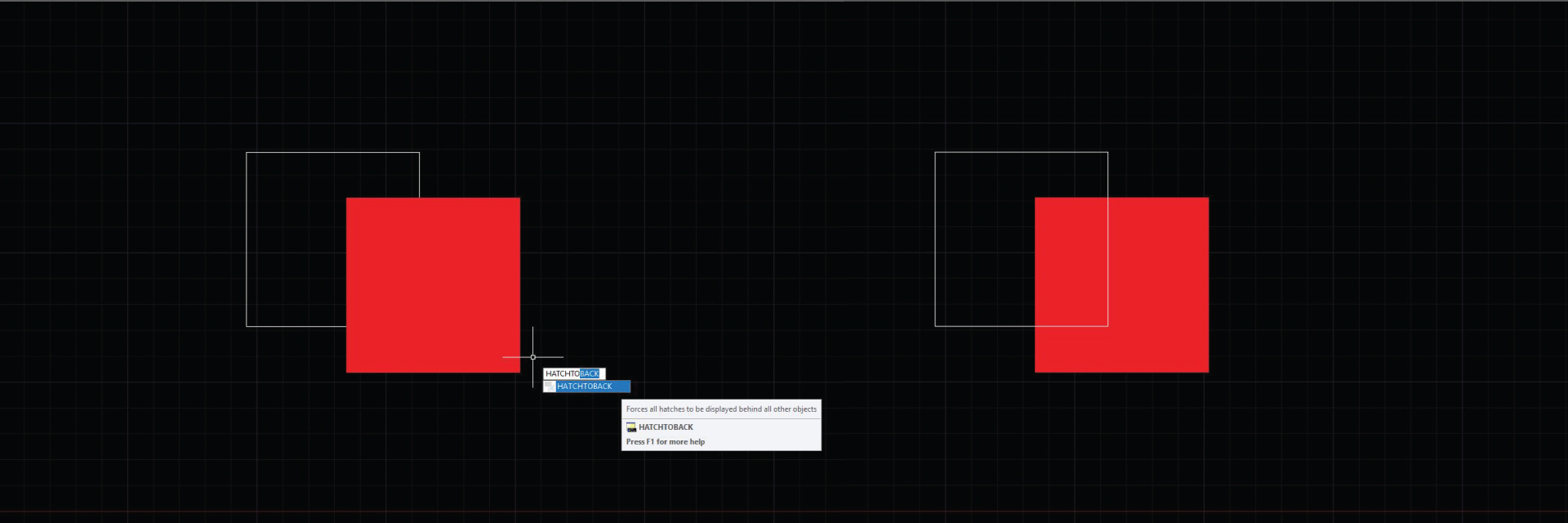
HATCHTOBACK, Send Hatch Behind Objects. Type command HATCHTOBACK to bring your hatch behind other drawing components.
BLOCKREPLACE, Replace All Matching Blocks. Type Command BLOCKREPLACE to replace all blocks.
BCOUNT, Count Named Blocks. Type command BCOUNT (not available in AutoCAD LT)
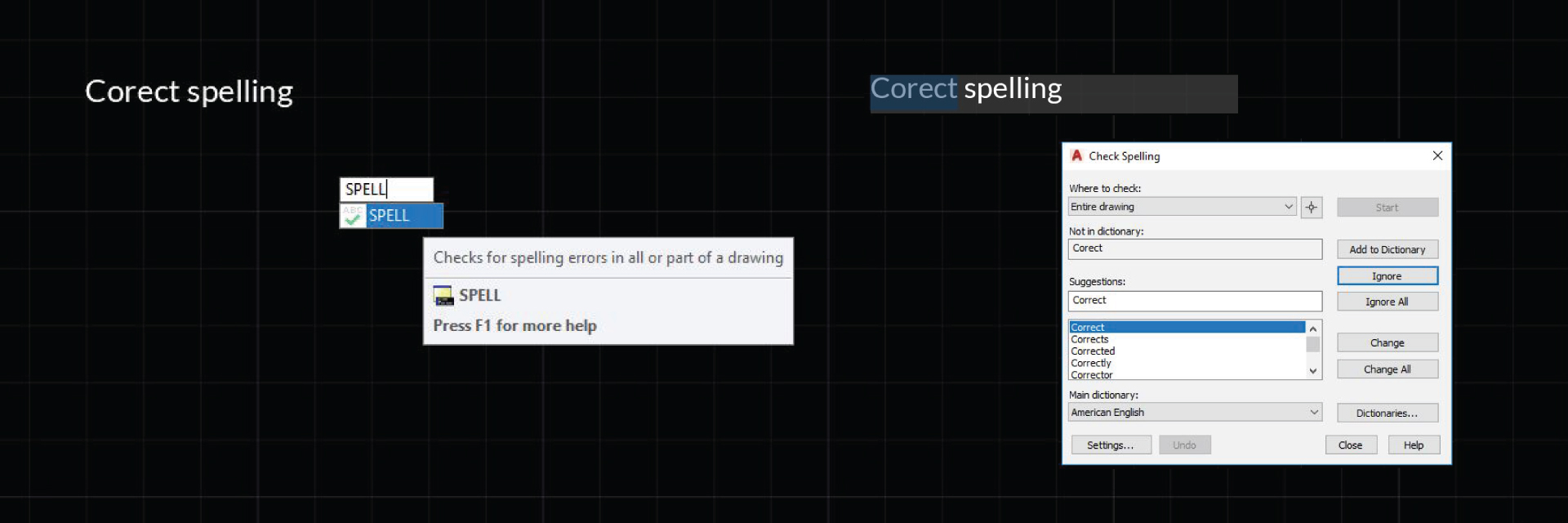
SPELL, Spell Check Your File. Type command SPELL to spell check.
SELECTSIMILAR, Select Matching Objects Instantly. First, select one or more objects. Type command SELECTSIMILAR, all objects in the current drawing that have the same properties are automatically added to the selection set. With the Settings option, you specify which properties to match, such as color or block name.
SCALELISTEDIT, Fix Slow Drawings. There may be too many unused scales in your drawing. Type command SCALELISTEDIT to delete unused scales.
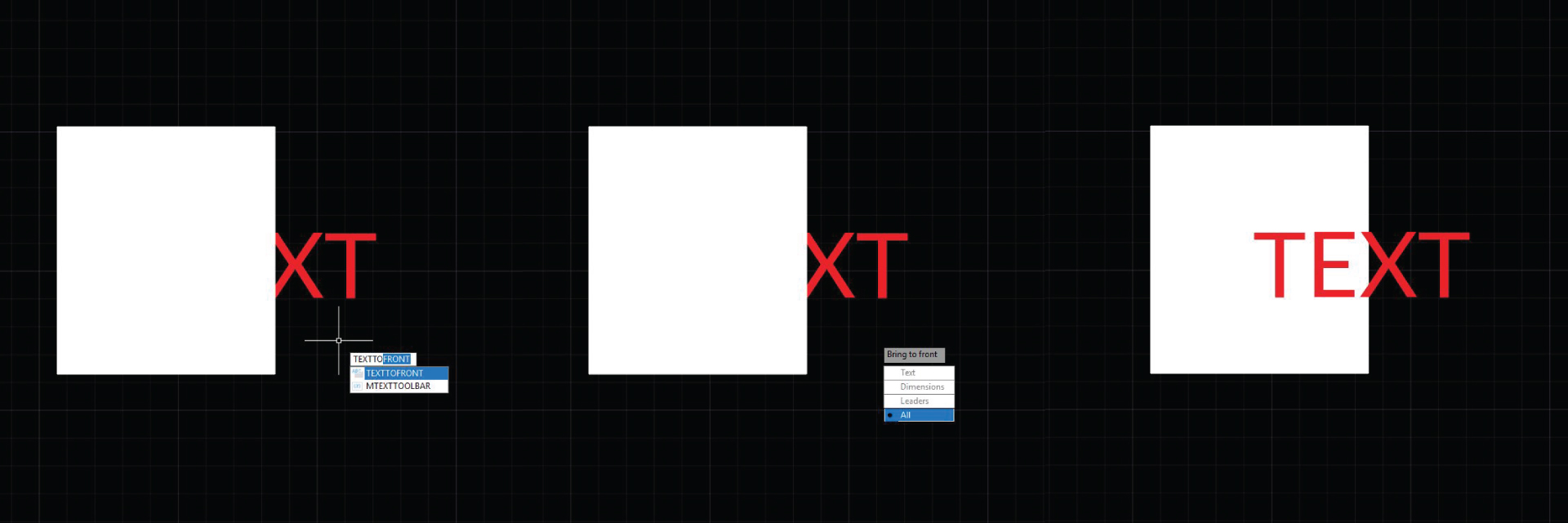
TEXTTOFRONT, Bring Text Forward. Type command TEXTTOFRONT to bring text to front.
ISODRAFT, Faster Isometric Drawing. Type command ISODRAFT and select between Isoplane Left, Right or Top.
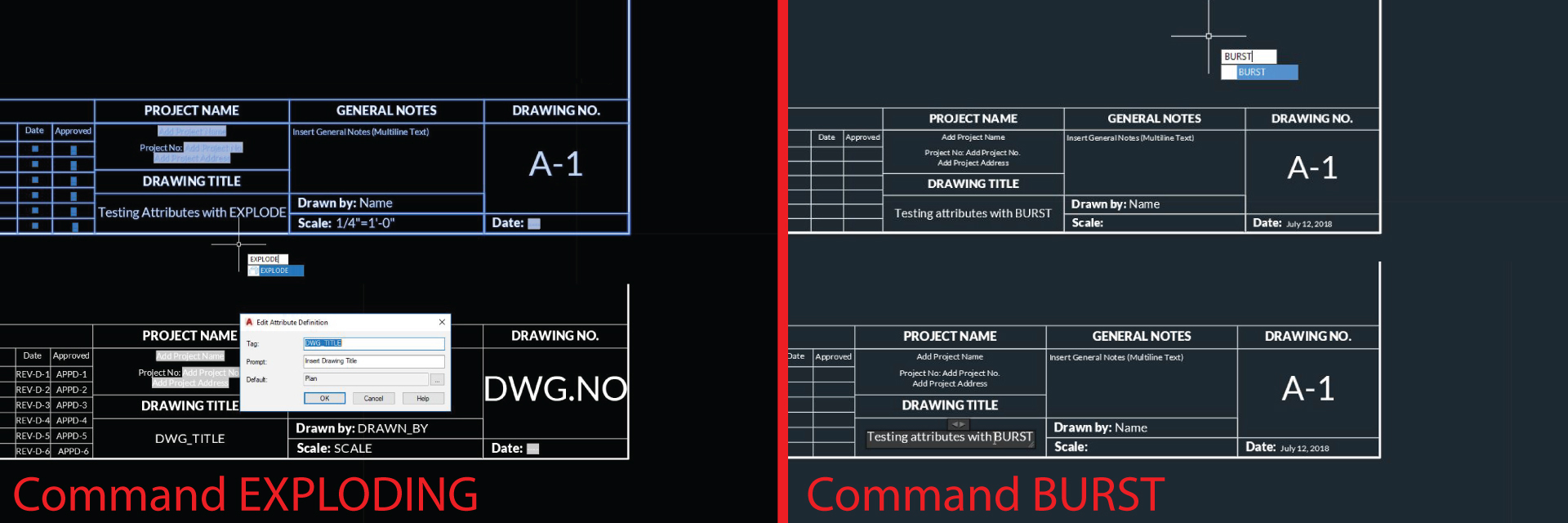
BURST, Better Than Explode for Attributes. Using command EXPLODE for text attributes turns text into an attribute value losing everything you typed instead of converting it into a text which can be edited. Try using command BURST instead. Text will not remain intact. (not available in AutoCAD LT)
Final Thoughts
Learning a few smart AutoCAD commands can save hours over time. You don’t need to memorize hundreds. Start with the ones that solve repetitive problems in your daily workflow. Even adding two or three of these to your routine can make a noticeable difference. The fastest users usually aren’t clicking more. They’re typing smarter.
If you use AutoCAD daily, our custom AutoCAD Dynamic Blocks can speed up production even more.



Leave a Reply
You must be logged in to post a comment.