Among AutoCAD users, few topics create more debate than STB vs CTB. Some users swear by CTB. Others refuse to work without STB. The truth? There is no universal winner. Both systems can produce excellent drawings. Choosing the better method usually comes down to workflow, company standards, collaboration needs, and personal preference. We’ve worked with both methods ourselves, and each has clear strengths and weaknesses. If you are new to AutoCAD or thinking about switching systems, understanding how each one works can make the decision much easier.
What Is a CTB File?
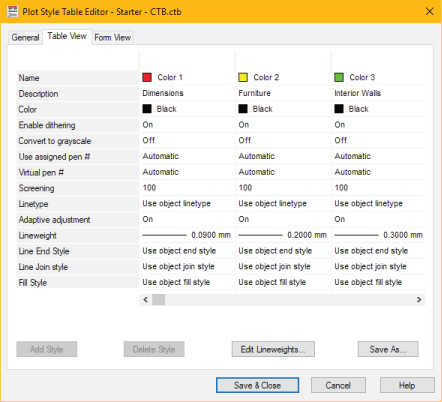
A CTB file is a colour-dependent plot style table. It uses an object’s colour to determine how it prints, including lineweight, screening, grayscale, and output colour. For example, every red object may print with the same lineweight, while blue objects may print differently. There are 256 available colour slots, which allows companies to build full office standards around colour logic. Many long-established firms still rely on CTB because once the system is learned, it becomes quick and efficient.
What Is an STB File?
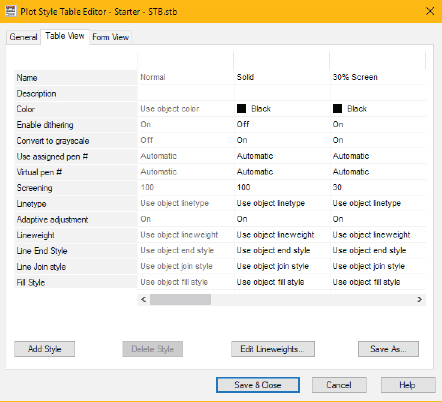
An STB file is a named plot style table. Instead of relying on colours, objects or layers receive named plot styles such as Thin, Medium, Heavy, Hidden, or Annotation. This means two objects can appear the same screen colour while printing with completely different lineweights. Many users prefer STB because it gives more freedom while drafting and removes the need to memorize colour plotting systems.
Why Some Users Prefer CTB
CTB has been widely used for many years, which makes file sharing easier with consultants, builders, architects, and companies already working in that system. It also creates strong internal consistency. When colours are tied to plotting standards, users are less likely to improvise or accidentally change output settings. For companies that want strict drawing control, CTB often works very well. Another benefit is detailed control in areas like dimensions, where different colour components can be assigned different plotted weights.
Why Some Users Prefer STB
STB feels more intuitive for many newer users because the plot style names describe the result directly. Instead of remembering that a certain colour equals a certain lineweight, you simply apply the style you need. It also allows more flexibility visually. You can choose layer colours for screen clarity instead of plotting restrictions. That can make busy drawings easier to read while drafting. Another advantage is that named styles can be added, edited, or reorganized as standards evolve.
Where CTB Can Be Frustrating
The biggest frustration with CTB is often the reliance on memorization. Users need to remember what each plotting colour means, and colours may be selected for print logic rather than drawing clarity. It can also be slower to modernize standards if an office has many legacy files built around an older CTB system.
Where STB Can Be Challenging
The biggest challenge with STB is adoption. Many outside consultants and older firms still use CTB, so collaboration may require file conversions or additional setup. For companies with years of established CTB templates, switching systems may not be worth the time unless there is a clear operational benefit.
So Which One Is Better?
The honest answer in the STB vs CTB debate is simple. Choose the system that best supports your workflow. If your office already has a clean CTB structure that everyone understands, there may be no reason to change. If you are building standards from scratch or want more visual freedom while drafting, STB can be an excellent option. Most plotting problems are not caused by CTB or STB anyway. They usually come from inconsistent standards, rushed setup, poor layer management, or mixed user habits. Clean systems matter more than the method itself.
Final Thoughts
Whether you work in STB or CTB, the goal is always the same. You want clear drawings, reliable plotting, and an efficient workflow. Debates are interesting, but productivity matters more. Use the method that keeps your team consistent, fast, and confident.
Follow uDesign on Instagram as well, where we share more AutoCAD tips, drafting insights, and practical ideas to help improve your workflow. And if you want to speed up repetitive work, explore our AutoCAD Dynamic Blocks shop for ready-to-use tools that can save serious drafting time.



Leave a Reply
You must be logged in to post a comment.