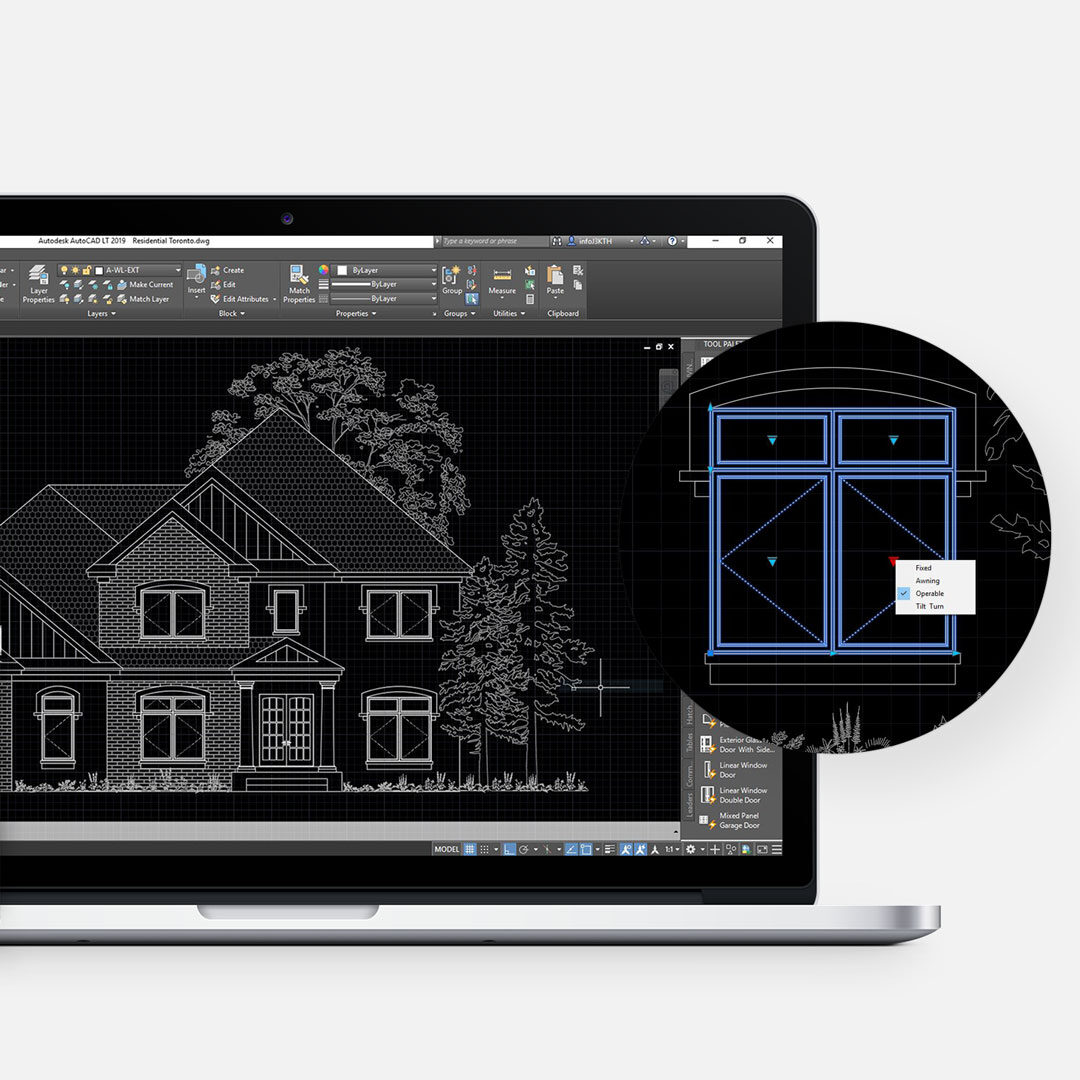
Had enough of wasting time trimming lines in AutoCAD? You’re not alone. Repeated trimming slows production, especially in floor plans, reflected ceiling plans, and furniture layouts where blocks intersect walls, hatches, or other geometry. The good news is that there are faster options. Two of the most common masking methods are Wipeout and Hatch. Both can help eliminate trimming, improve drafting speed, and clean up drawings. However, each method comes with strengths, limitations, and workflow differences. If you’ve ever wondered about Wipeout vs Hatch AutoCAD, this guide will help you choose the better solution for your setup.
Why Masking Matters in AutoCAD
Masking is used to conceal part of a drawing without manually trimming every line. For example, if a door block sits inside a hatched wall, masking can automatically hide the wall hatch behind the door swing. That means: cleaner drawings, faster revisions, less repetitive editing, easier block placement. Once you start using masking properly, it is difficult to go back.
Wipeout in AutoCAD
What Is Wipeout? AutoCAD Wipeout creates a polygonal area that masks underlying objects using the current background colour. It essentially acts like an automatic trim zone. This makes it extremely useful for doors and windows on plans, furniture blocks on flooring patterns, annotation cleanup, symbols placed over dense geometry.
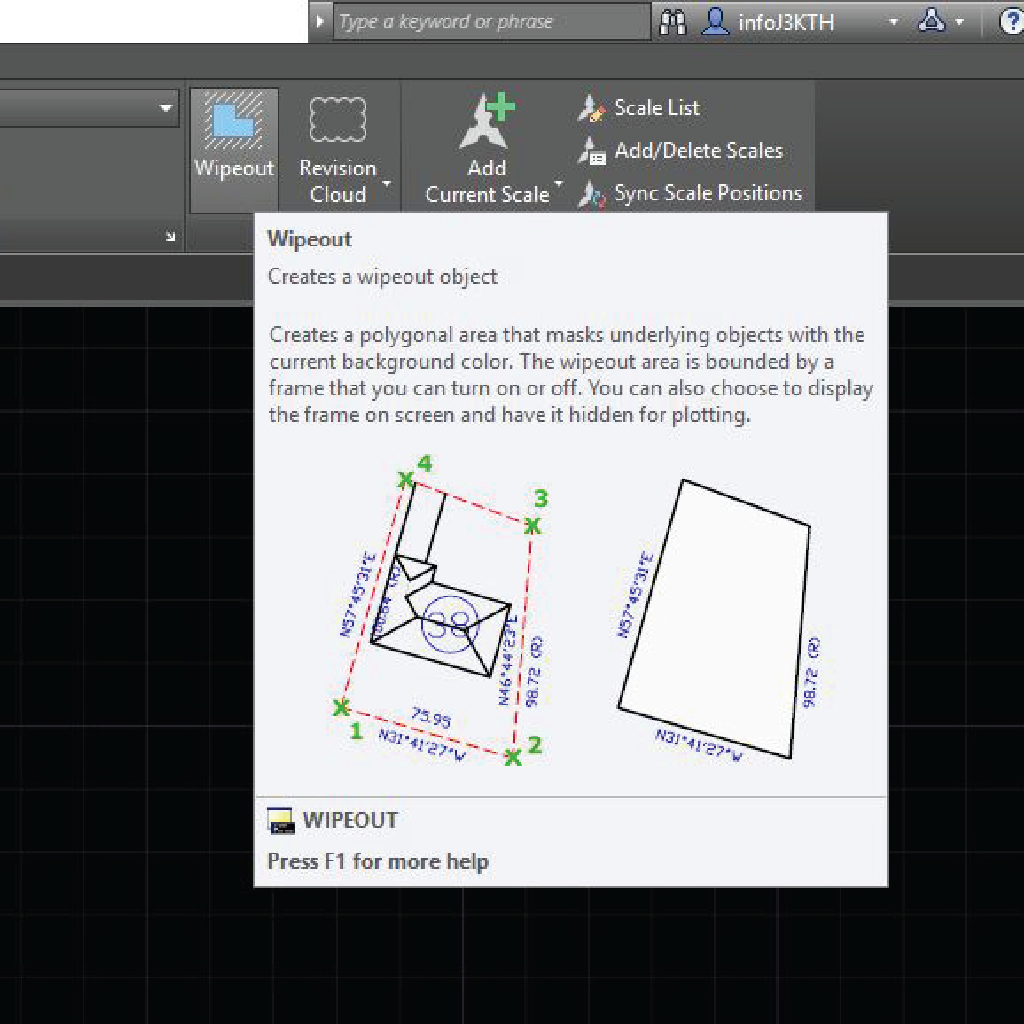
How Wipeout Works
Inside a block, create a WIPEOUT boundary around the shape. Then send the wipeout behind visible linework inside the block. This allows the block to remain visible while hiding the geometry behind it. A very efficient solution.
Common Wipeout Issues
Wipeouts can be frustrating when you first start working with them. The three main issues that may arise are draw order, plotting and wipeout frame. Here are a few tips to help along the way:
Draw Order Problems. If you have inserted a block or object into your drawing and do not see the masking, check your draw order. Wipeout can block some of the lines in a block when plotting. Simply edit the block and send the wipeout to back using DRAWORDERCTL command.
Plotting Issues. Wipeout won’t plot correctly on some plotters or pdf, as it can cause solid black spots on PDF outputs. Being a raster entity, you may also see a visible border around it.
Wipeout Frame Visibility. There is a visible border. Solutions: Set WIPEOUTFRAME system variable to 2. It displays wipeout on the drawing but will print. Set WIPEOUTFRAME system variable to 0. It will hide the wipeout frame on the drawing and it will not print.
If wipeouts are giving you problems, take a look at using a solid hatch as an alternative.
Hatch as a Masking Method
What Is Hatch Masking? Hatch is normally used to fill enclosed areas. However, a solid hatch can also act as a masking tool. This method is often preferred by users who dislike wipeout plotting behaviour.
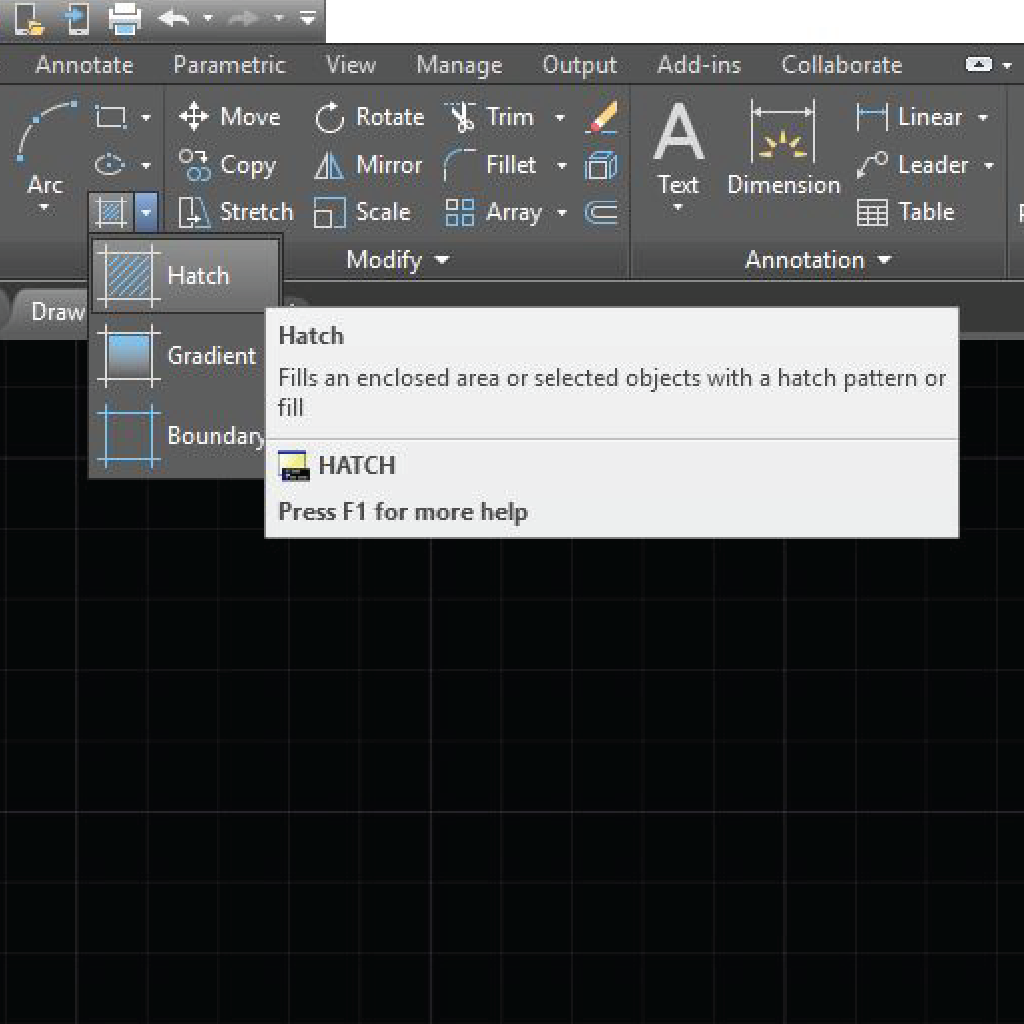
How Hatch Masking Works
Create a solid hatch using the background colour. Then configure your plotting style so it does not print. This can be done using CTB files and STB files. For example, a white solid hatch with 0% screening can visually hide objects while remaining invisible when plotted.
Common Hatch Masking Issues
More Setup Required. Unlike wipeout, hatch masking requires plotting setup. You must control colour assignments, screening, plot style behaviour.
Random PDF Lines / Streaks. Some PDF viewers show hatch streaks or artifacts. This is common in AutoCAD-generated PDFs.
More Visible While Drafting. Depending on colours and settings, hatch masks can be distracting on screen.
Wipeout vs Hatch AutoCAD: Quick Comparison
| Feature | Wipeout | Hatch |
|---|---|---|
| Fast to create | Yes | Moderate |
| Best for blocks | Excellent | Good |
| Plot reliability | Sometimes inconsistent | Often stronger |
| Easy setup | Yes | No |
| Visible on screen | Minimal | More visible |
| Best for teams | Good | Good with standards |
Which One Should You Use?
Use Wipeout if you want speed, you use many dynamic blocks, you need fast masking inside symbols like doors, furniture, fixtures, or windows.
Use Hatch if you have strict plot standards, you dislike wipeout PDF issues, you already use custom CTB/STB workflows.
Our Preferred Method
For most drafting workflows, we prefer Wipeout. It is faster to build, easier to maintain, and excellent inside reusable dynamic blocks. That is why we integrate wipeout workflows into many of our AutoCAD block collections.
Final Thoughts on Wipeout vs Hatch AutoCAD
Both methods work. Neither is perfect. AutoCAD has always had little quirks depending on version, drivers, and output settings. The real goal is not perfection. The goal is faster drafting. If a tool saves time every day, it deserves a place in your workflow. If you’re exploring smarter drafting systems, start testing both methods and use the one that works best for your office standards.
For more AutoCAD productivity tips, explore our Design Resources + uDesign section. You can also browse our dynamic block products designed to save real production time. For updates and drafting tips, follow along on Instagram.



Leave a Reply
You must be logged in to post a comment.